
Every alert — a new message, an applicant on your case, a nearby emergency, an order update, a support reply — appears on the Notifications page and the bell at the top. Tap one to open what it's about; use Unread and Mark all as read.
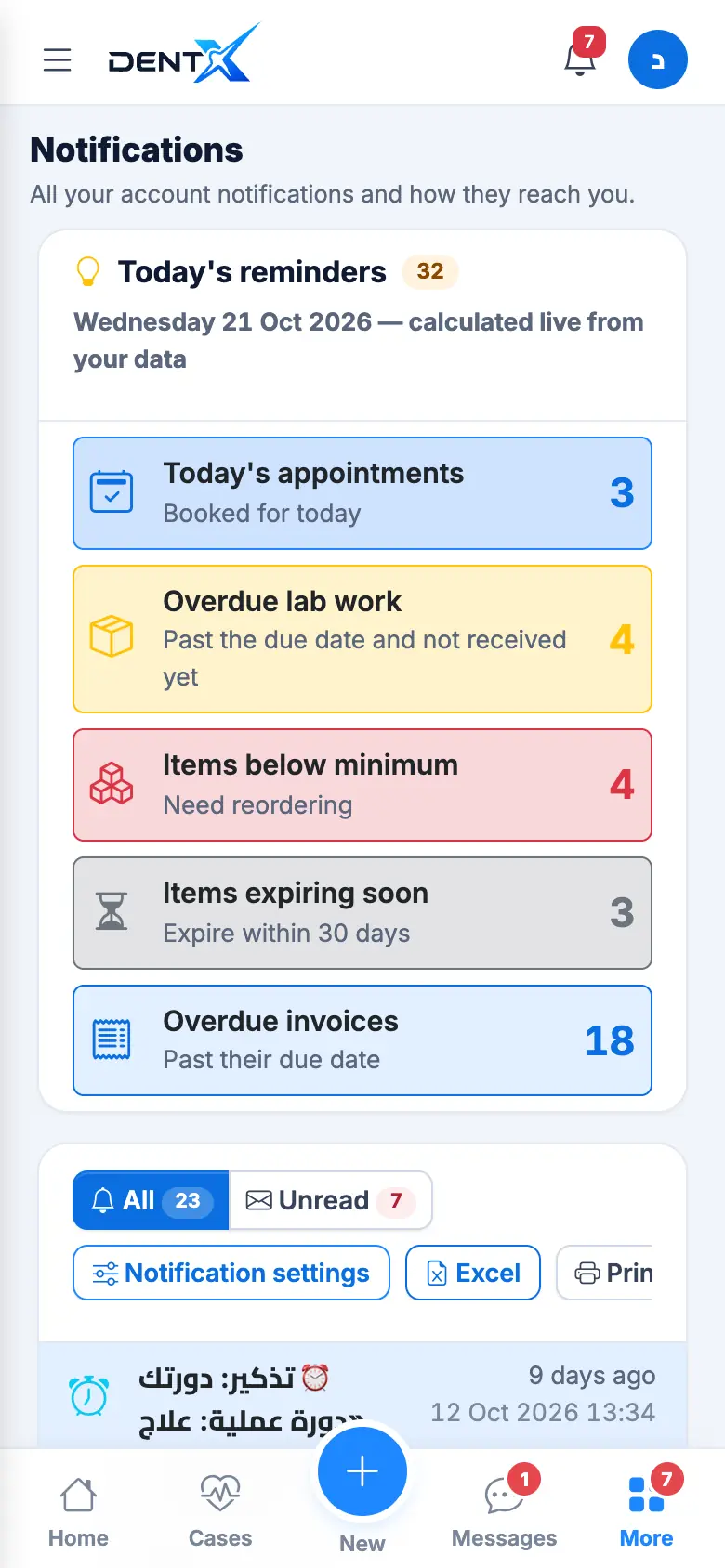
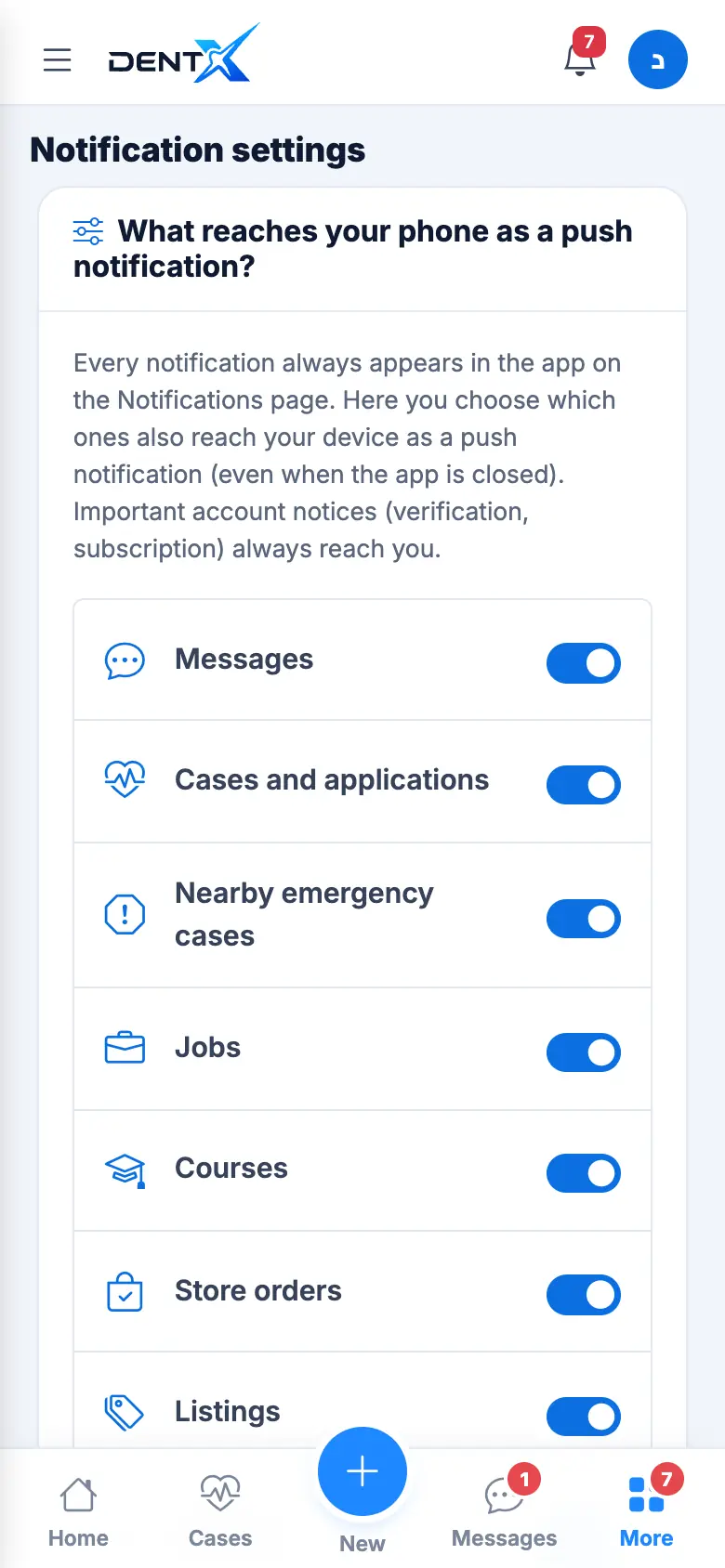
Choose what reaches your phone
Open Notification settings (open) and switch each type on or off: Messages, Cases and applications, Nearby emergency cases, Jobs, Courses, Store orders, Listings… Support replies are always on, and important account notices (verification, subscription) always reach you.
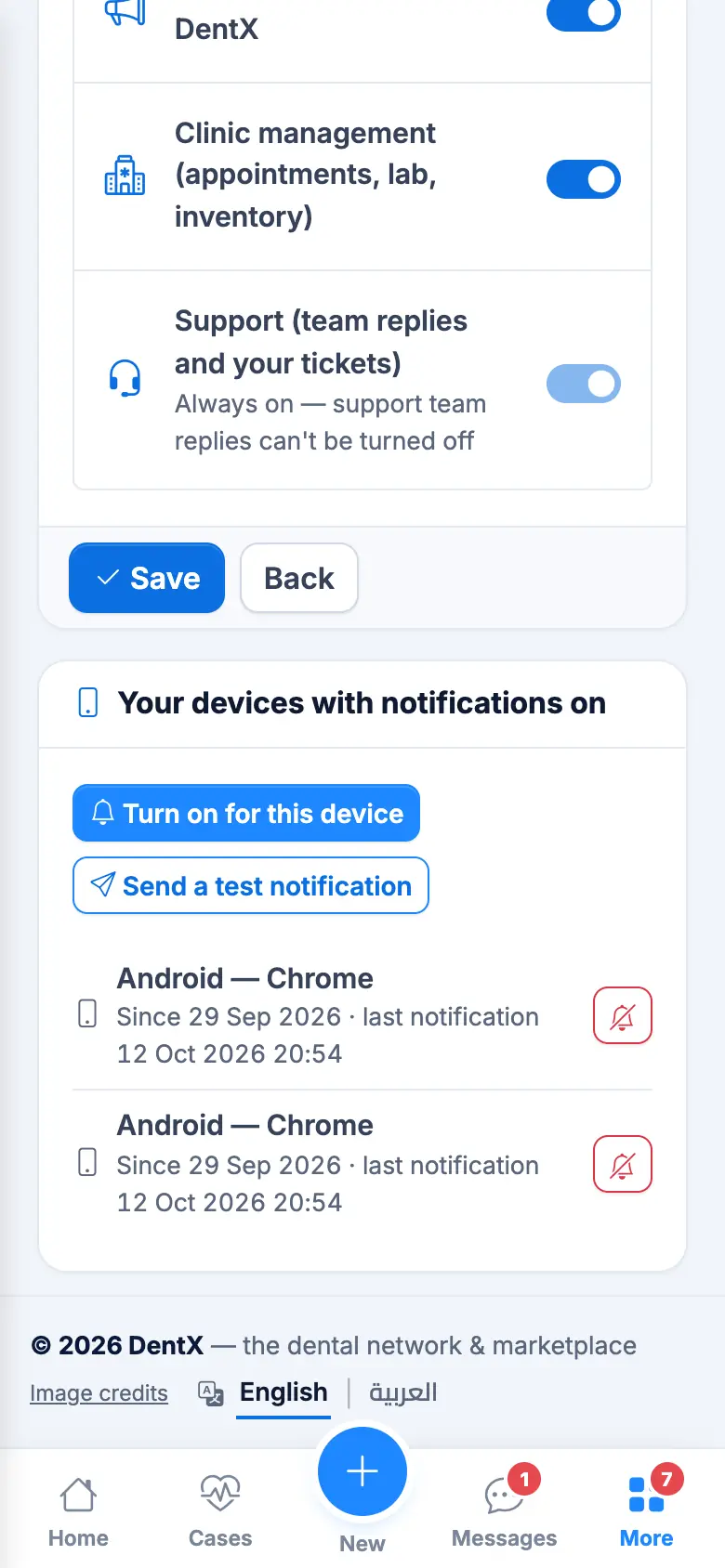
Push notifications on this device
Under Your devices with notifications on:
- Tap Turn on for this device and allow notifications when the phone asks.
- Tap Send a test notification to check it arrives.
- Remove old devices from the list.
Notifications not arriving? Open DentX from its installed icon (not a browser tab), then Notification settings → Turn on for this device → Send a test notification. On iPhone, web notifications only work after adding DentX to the Home Screen — see The mobile app.
Each device you sign in on needs to be turned on once.